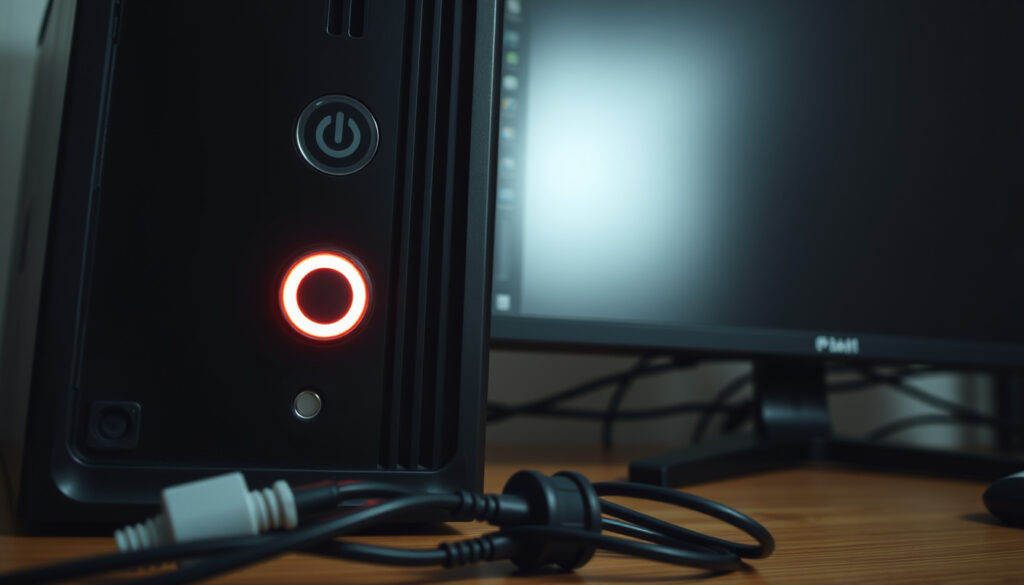
My Computer Won’t Turn On? Step-by-Step Solutions and Fixes
You press the power button, hear a click, maybe a fan stirs – then nothing. It’s one of those moments that makes you wonder if your computer has finally given up. Before you panic, know this: most no-power issues trace back to a handful of simple causes that you can check yourself with no tools.
First step: Check power cable connection ·
Dell recommendation: Press power button firmly ·
Intel step 2: Inspect internal wiring
Quick snapshot
- Check power cable connection (Dell Support)
- Test wall outlet with another device (Dell Support)
- Ensure power supply switch is on (Dell Support)
- Reseat RAM (Microsoft Learn)
- Check monitor connection (Microsoft Learn)
- Listen for beep codes (Microsoft Learn)
- Indicates power supply or motherboard issue (Dell Support)
- Try power drain (hold button 15–20 sec) (Dell Support)
- Consult motherboard manual (Dell Support)
- Possible overheating
- Faulty power supply
- Check for short circuits
Even when the power light flashes, the system may still have enough juice to damage components if you keep trying to force it on. A quick power drain is the safest first move.
| Fact | Detail |
|---|---|
| Most common cause | Faulty power supply (Microsoft Learn) |
| First action | Check power cable connection (Dell Support) |
| DIY reset | Remove CMOS battery for 1 minute |
| Professional help needed | If motherboard failure suspected |
| Data safety | Often no data loss if only power issue |
| Power button discharge time | Hold 15–20 seconds after unplugging (Microsoft Learn) |
The table shows that a faulty power supply sits atop the list of suspects, but the cheapest check—the power cable connection—catches many failures before any component swap is needed.
What is the first step in troubleshooting a computer that won’t turn on?
Verify power cable connection
- Check that the power cable is firmly plugged into both the computer and the wall outlet. Dell Support emphasizes this as the most basic but often missed check.
- If you’re using a power strip, make sure it’s turned on and not tripped.
- For laptops, ensure the AC adapter is fully inserted and the charging light is on.
Check power strip and outlet
- Test the outlet with a lamp or phone charger. Dell Support recommends this simple verification before proceeding.
- Try a different outlet in another room to rule out a tripped breaker.
Why is my PC suddenly not turning on?
Power supply failure
- A faulty PSU is the single most common culprit in sudden no-power situations. Microsoft Learn lists it as the top suspect when fans, lights, and beeps are all absent.
- If you hear a click when pressing the power button but nothing else, the PSU may be failing under load.
Motherboard issues
- A shorted component or a failed voltage regulator on the motherboard can prevent any power flow. Microsoft Learn notes that a shorted component is one possible cause for a dead system.
- Look for bulging capacitors or burn marks on the board.
Loose internal connections
- Check that the 24-pin motherboard power cable and the 4/8-pin CPU power cable are fully seated. Intel Gaming Resources advises inspecting internal wiring after verifying cables.
The pattern: Sudden failures usually point to the power supply or a connection that worked loose over time. Neither is a death sentence – both are fixable.
How do I force my PC to turn on?
Perform a power drain
- Unplug all cables, then press and hold the power button for 15–20 seconds. Microsoft Learn and Dell Support both recommend this to drain residual charge.
- Reconnect power and try turning it on normally.
Use the power button bypass
- If the power button feels loose or doesn’t click, Dell Support warns that a stuck power button can prevent booting.
- On desktops, you can temporarily short the power switch pins on the motherboard to bypass the button.
Reset CMOS
- Remove the coin-cell battery from the motherboard for 60 seconds to clear the BIOS settings.
- This can resolve issues where incorrect settings prevent power-on.
How to diagnose a PC that won’t turn on?
Check for POST codes
- Listen for beep sequences. One short beep often means everything is fine; continuous beeps signal RAM or GPU issues. Microsoft Learn explains that beep codes help isolate the faulty component.
- Some motherboards have a numeric display that shows POST codes – consult the manual.
Test with minimal hardware
- Remove all non-essential components: extra drives, PCIe cards, and all but one RAM stick. Microsoft Learn suggests leaving only keyboard, mouse, and power connected.
- If the system boots, add parts back one by one to find the culprit.
Use a multimeter on power supply
- With the PSU disconnected, check the 24-pin connector voltages: pin 9 (5V standby) should read ~5V, and pin 10 (power good) should be ~5V after power-on.
- If voltages are substantially lower, the PSU is likely defective.
A multimeter test costs nothing beyond a $10 tool and can confirm whether your power supply is the problem before you buy a replacement.
The pattern: Diagnosis moves from external to internal, from simple to technical. Start with the outlet, end with the multimeter – most users never need the last step.
How do I fix my PC that won’t turn on?
Replace power supply
- If diagnostics point to a bad PSU, swap it with a known-working unit. Microsoft Learn confirms that replacing faulty components is the next step after isolation.
- Ensure the replacement has enough wattage for all components.
Reseat RAM and GPU
- Remove and reinsert the RAM sticks and graphics card. Microsoft Learn recommends this for systems where fans spin but display remains black.
- Try each RAM stick in different slots to rule out a bad slot.
Reset motherboard
- If the motherboard has a clear CMOS button or jumper, use it.
- As a last resort, remove all components and rebuild the system on a non-conductive surface to check for shorts.
What’s clear and what’s not
Confirmed facts
- Check cables is essential – Dell, Microsoft, and Intel all agree on this first step.
- Faulty power supply is the most common cause of no-power symptoms (Microsoft Learn).
- Power button may be stuck or loose – Dell notes this as a frequent oversight.
- A 15–20 second power drain after unplugging reliably clears residual charge.
What’s unclear
- Why a computer stops working after being idle for days or weeks – could be PSU degradation or motherboard capacitor aging.
- Whether a specific component failed without further diagnostic testing (multimeter or POST card often needed).
What the experts say
Press the power button firmly to ensure connection.
— Dell Support
Check your cables first, then internal wiring.
— Intel Gaming Resources
The same power button that’s supposed to be your best friend can betray you by sticking or failing internally. Dell’s support logs show that replacing a $5 switch often solves a “dead” computer.
For the average home user stuck with a dead PC, the decision is clear: start at the wall outlet, work through the power drain, and only then open the case. If the problem isn’t fixed by reseating RAM or swapping the PSU, the motherboard likely needs professional attention – or a replacement. In most cases, the data is safe, and the solution costs less than a new machine.
Frequently asked questions
How long should I hold the power button for a hard reset?
Hold it for 15–20 seconds after unplugging the power cord to drain residual charge. This is the standard recommendation from both Dell Support and Microsoft Learn.
Can a dead CMOS battery prevent my computer from turning on?
Yes, a depleted CMOS battery can cause the motherboard to lose BIOS settings, leading to boot failures. Replacing it with a CR2032 coin cell is an easy fix.
What does a single beep mean when I try to power on?
One short beep typically indicates a successful POST – the computer has passed its self-test. If you hear continuous beeps, reseat the RAM or GPU.
Should I reseat the RAM if my computer won’t boot?
Absolutely. Improperly seated RAM is a leading cause of a black screen after power-on. Remove, clean the contacts, and reinsert firmly.
Is it safe to use a different power supply to test?
Yes, but only if the replacement PSU has the same connectors and sufficient wattage. Never swap a working PSU if you suspect a short – test with minimal components first.
Why does my computer turn on but then immediately shut off?
This often signals overheating, a faulty PSU, or a short. Check CPU cooler mounting, PSU fan, and look for loose screws touching the motherboard.
More related posts
 Bishop McNally High School: History, Location, Schedule, and More
 What Is the Longest Word in the World – 45-Letter Dictionary Record
 Cast of Avengers: Doomsday: Confirmed Actors & Rumors
 Denver Nuggets vs Boston Celtics Match Player Stats – Box Scores & Top Performers
 David Bromstad: Sobriety, Partner, and Net Worth Updates
 Truck Stop Near Me: Ireland Circle K Locations & Services
 Billet d’Avion Pas Cher vers Carthagène – Best Deals 2025
 Canadian Tire Woodstock NB – Store #137, Hours & Auto Centre
